



前言
在認真閱讀白皮書和官方文檔后,了解了 Vertica 架構的兩種模式,這篇打算本地安裝體驗一下,測試安裝單機版!
?? 作者寫的 《Vertica 技術文章合集》,歡迎閱讀 ????!
一、介紹
Vertica 支持不同的環境安裝,可以選擇在物理主機硬件上運行,或者在云上部署,條件有限,就在本地虛擬機上測試安裝啦!
單機:安裝在單個主機上,通常用于測試和開發環境,不支持擴展更多主機。集群:通常用于生產環境的安裝,通過集群管理數據庫,數據均勻存儲在集群的各個節點上。
?? 安裝注意點:
- Vertica 僅支持每個集群運行一個數據庫。
- Vertica 支持在一個、兩個或多個節點上安裝。無論集群中有多少個節點,安裝
Vertica的步驟都是相同的。 - 所有 Vertica 配置都需要安裝 Vertica 之前列出的先決條件。
- 在任何時候,一臺主機上只能運行一個 Vertica 實例。
- 要運行
install_vertica腳本以及添加、更新或刪除節點,必須以 root 身份登錄,或以具有所有權限的用戶身份登錄 sudo。必須為所有安裝運行該腳本,包括升級和單節點安裝。
?? 通過仔細研讀了官方文檔之后,總結一下如何安裝單機版用來測試學習,其中的一些注意點比較細節,對初學者很有幫助!
二、安裝前準備
1、安裝介質下載
Vertica 11.0.x CE 社區免費版安裝包、客戶端、驅動程序:
| 名稱 | 大小 | 備注 |
|---|---|---|
| vsql-11.0.1-0.mac.dmg | 2.3M | vsql 客戶端 for macOS |
| Vertica_11.0.x_Release_Notes.html | 96KB | Vertica 11.0 版本文檔 |
| vertica_11.0.1-2_amd64.deb | 517.4M | Vertica Debian、Ubuntu 安裝包 |
| VerticaSetup-11.0.1-0.exe | 78.1M | Vertica Windows 安裝程序 |
| Vertica-user-doc_11.0.x-for-download.zip | 111.5M | Vertica 用戶手冊 |
| vertica-R-lang_11.0.1-0_amd64.deb | 52.7M | Debian、Ubuntu R 語言 Vertica 驅動 |
| vertica-R-lang-11.0.1-0.x86_64.SUSE.rpm | 46.9M | SUSE R 語言 Vertica 驅動 |
| vertica-R-lang-11.0.1-0.x86_64.RHEL6.rpm | 53M | RHEL6 R 語言 Vertica 驅動 |
| vertica-odbc-11.0.1-0.mac.pkg | 14.4M | Vertica ODBC 驅動 |
| vertica-jdbc-11.0.1-0.jar | 1.3M | Vertica JDBC 驅動 |
| vertica-console_11.0.1-2_amd64.deb | 621.1M | Vertica Debian、Ubuntu 管理控制臺 |
| vertica-console-11.0.1-2.x86_64.SUSE.rpm | 447.1M | Vertica SUSE 管理控制臺 |
| vertica-console-11.0.1-2.x86_64.RHEL6.rpm | 621.2M | Vertica RHEL6 管理控制臺 |
| vertica-client-fips-11.0.1-0.x86_64.rpm | 32.5M | Vertica FIPS 客戶端 |
| vertica-client-11.0.1-0.x86_64.rpm | 37.9M | Vertica 客戶端 |
| vertica-11.0.1-2.x86_64.SUSE.rpm | 513.7M | Vertica SUSE 安裝包 |
| vertica-11.0.1-2.x86_64.RHEL6.rpm | 513.7M | Vertica RHEL6 安裝包 |
?? 注意: 雖然安裝包名稱是 RHEL6,但是兼容!
2、防火墻端口
Vertica 需要在本地網絡上打開多個端口。Vertica 不建議在節點之間放置防火墻(所有節點都應位于防火墻之后),但如果您必須在節點之間使用防火墻,請確保以下端口可用:
| 端口 | 協議 | 服務 | 注意點 |
|---|---|---|---|
| 22 | TCP | sshd | 通過所需的管理工具和管理控制臺群集安裝向導。 |
| 5433 | TCP | Vertica | Vertica 客戶端(vsql、ODBC、JDBC 等)端口。 |
| 5434 | TCP | Vertica | 集群內和集群間通信。Vertica 打開 Vertica 客戶端端口 +1(默認為 5434)用于集群內通信,例如在計劃期間。如果來自默認客戶端端口的端口 +1 不可用,則 Vertica 會打開一個隨機端口用于集群內通信。 |
| 5433 | UDP | Vertica | Vertica 傳播監控和 MC 集群導入。 |
| 5444 | TCP | Vertica 控制臺 | MC 到節點和節點到節點(代理)通信端口。 |
| 5450 | TCP | Vertica 控制臺 | 用于從 Web 瀏覽器連接到 MC 并允許從節點到 MC 應用程序/Web 服務器的通信的端口。 |
| 4803 | TCP | Spread | 客戶端連接。 |
| 4803 | UDP | Spread | 守護進程到守護進程的連接。 |
| 4804 | UDP | Spread | 守護進程到守護進程的連接。 |
| 6543 | UDP | Spread | 監視守護程序連接。 |
3、系統支持
以下摘自官方文檔,Vertica 11 版本支持 RedHat 7/8 或 Centos 7/8 以上版本。

| 平臺 | 處理器 | 支持版本 |
|---|---|---|
| Red Hat Enterprise Linux / CentOS | x86_64 | 6.x is no longer supported,7.x: all with known issues,8.x: all with known issues |
| SUSE Linux Enterprise Server | x86_64 | 12 SP2 and higher,15.x: all |
| openSUSE | x86_64 | 42.3 |
| Oracle Enterprise Linux | x86_64 | 6.x: all,7.x: all |
| Debian Linux | x86_64 | 8.5,8.9,10.x: with known issues |
| Ubuntu | x86_64 | 14.04 LTS and higher with known issues |
二、Linux 系統
1、環境信息
單機版本環境信息如下:
| 主機版本 | Vertica 版本 | 主機名 | IP 地址 | 內存 | SWAP | 磁盤容量 |
|---|---|---|---|---|---|---|
| centos7.9 | 11.0.1 | vertica | 192.168.56.100 | 4G | 2G | 50G |
?? 官方文檔要求:
- 每個 邏輯處理器 至少具有
1GB內存 - 需要至少
2 GB的交換分區SWAP - 磁盤格式建議使用
ext4或者XFS
2、系統安裝
本次使用 Centos7.9 主機進行安裝,常規的系統安裝過程就不再過多贅述,安裝過程可參考:
或者使用 vagrant 進行一鍵安裝:
下面演示下,vagrant 安裝:
cd /Volumes/DBA/vertica11
vagrant init luciferliu/centos7.9
修改配置:
cat<<EOF>Vagrantfile
Vagrant.configure("2") do |config|
  config.vm.box = "luciferliu/centos7.9"
  config.vm.synced_folder "/Volumes/DBA/vertica11", "/vagrant"
  config.vm.network :forwarded_port, guest: 22, host: 22
  config.vm.network "private_network", ip: "192.168.56.100"
  config.vm.provider "virtualbox" do |vb|
  vb.name = "vertica"
  vb.memory = 4096
  vb.cpus = 2
  end
end
EOF

開始安裝:
vagrant up
vagrant ssh
sudo passwd root
su - root
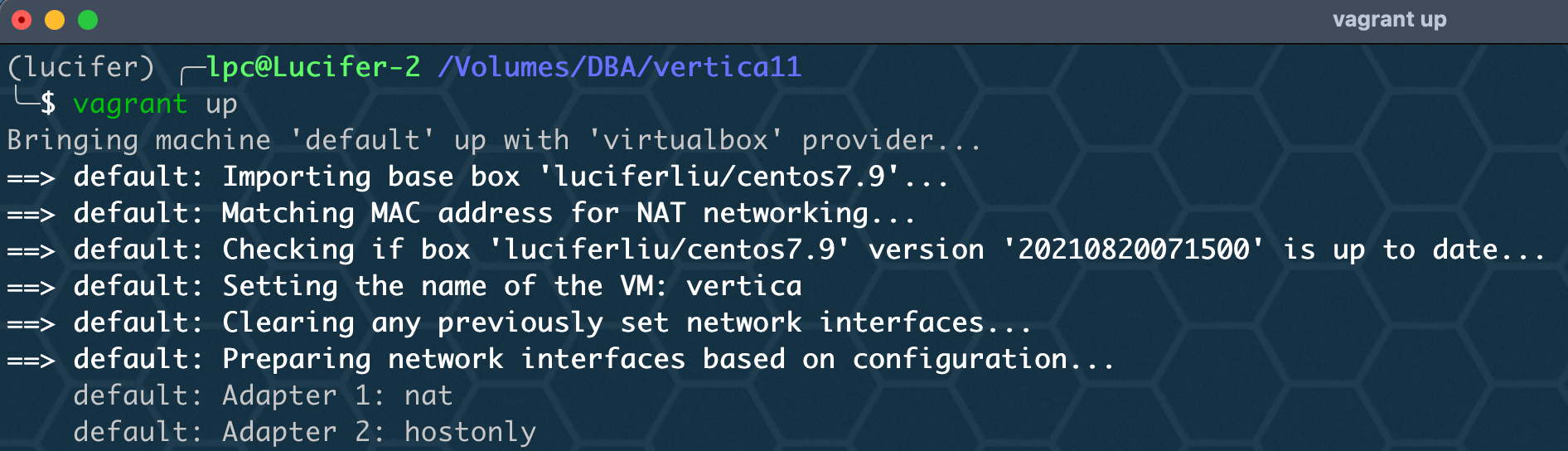
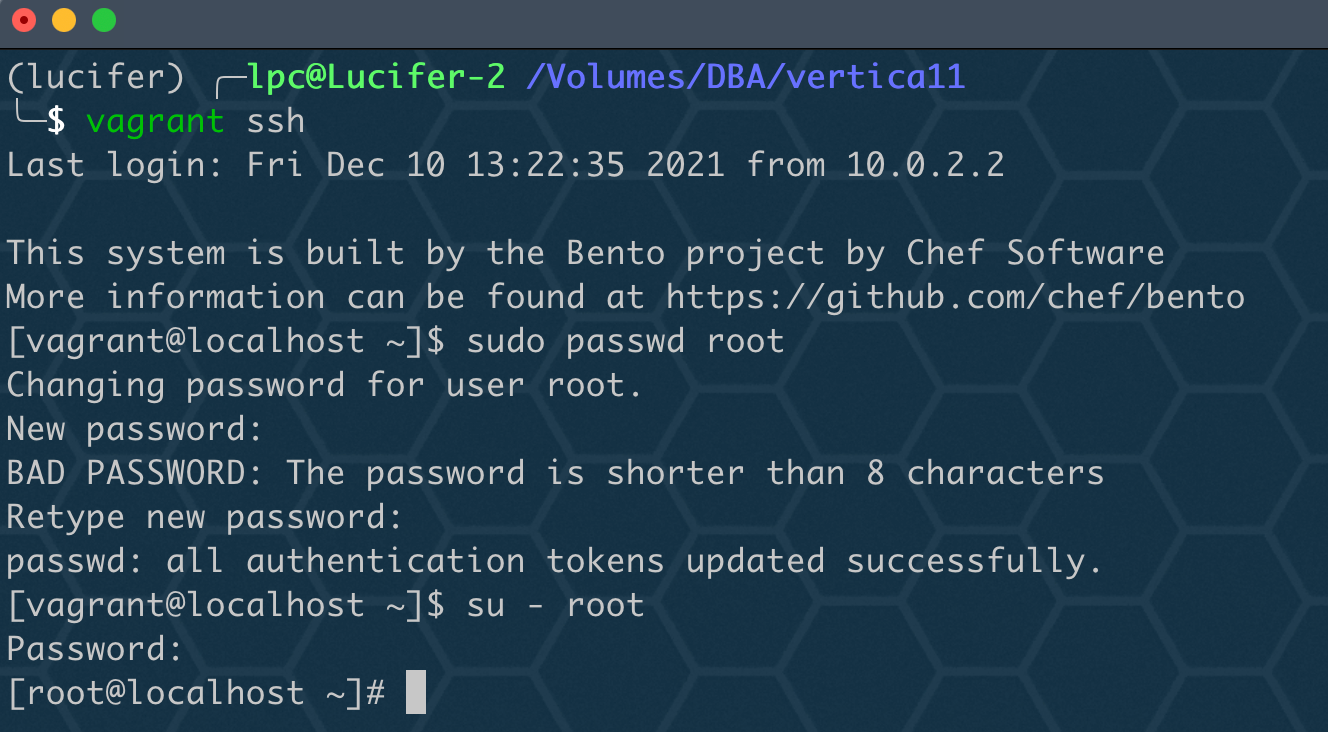
至此,Centos7.9 主機已經安裝完成!
三、安裝前配置
系統安裝好后,需要 配置網絡 和 yum 源,由于我使用 vagrant 進行安裝,已經提前配置好,這里不再演示!
1、配置主機名
vertica 不建議設置主機為 localhost,應設置對應可辨別的主機名
hostnamectl set-hostname vertica
hostname
bash

2、關閉防火墻
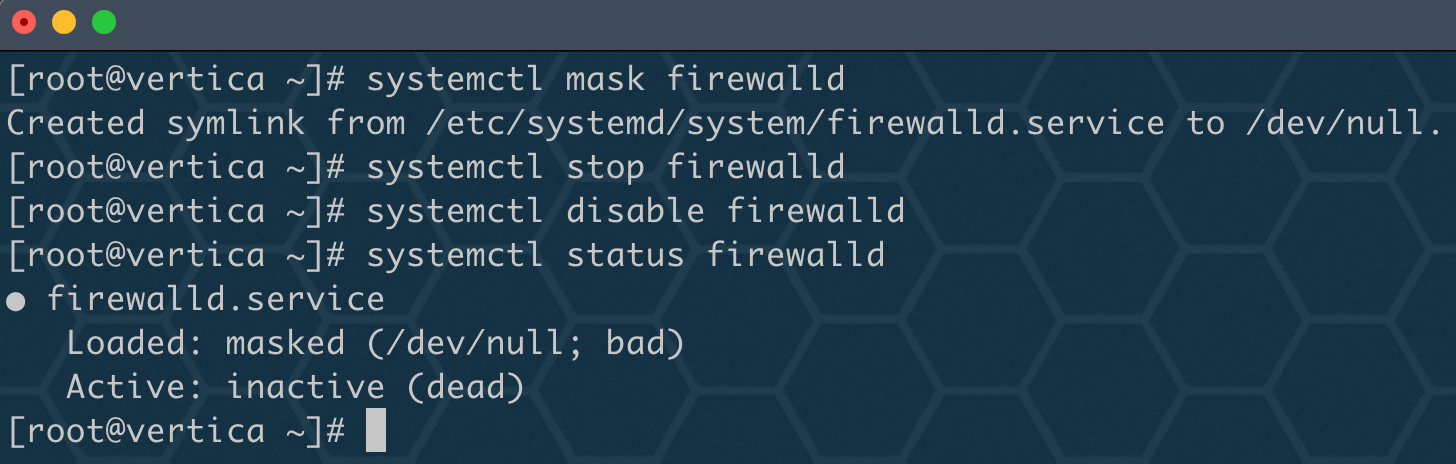
如果沒有特殊需求,建議直接關閉:
systemctl mask firewalld
systemctl stop firewalld
systemctl disable firewalld
systemctl status firewalld
3、關閉 selinux
SElinux 必須設為 disabled 禁用或在 permissive 下運行:
sed -i 's/SELINUX=enforcing/SELINUX=disabled/g' /etc/selinux/config
setenforce 0
getenforce

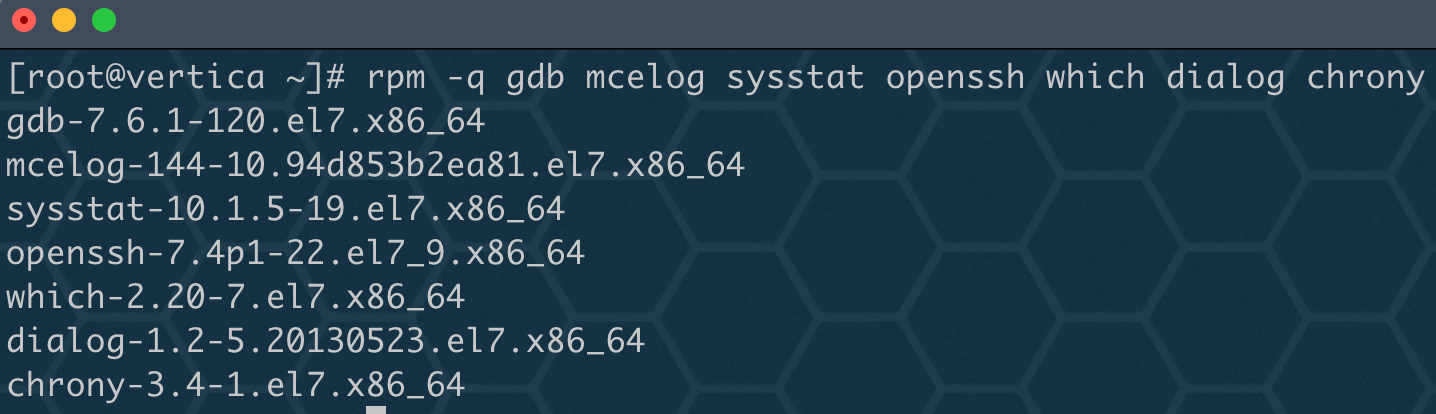
4、安裝依賴包
我已配置好網絡 yum 源,沒有配置的朋友請自行配置。
yum install -y gdb mcelog sysstat openssh which dialog chrony
rpm -q gdb mcelog sysstat openssh which dialog chrony
5、檢查 pts 是否掛載
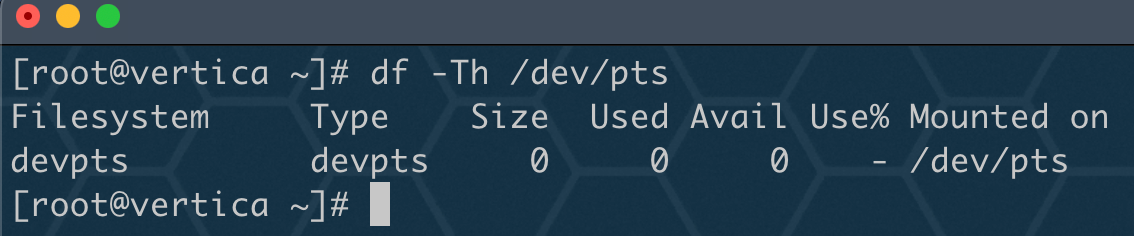
確保 /dev/pts 已掛載,否則創建數據庫時,在缺少掛載點 /dev/pts 的主機上安裝 Vertica 可能會導致錯誤。
df -Th /dev/pts
6、創建用戶和組
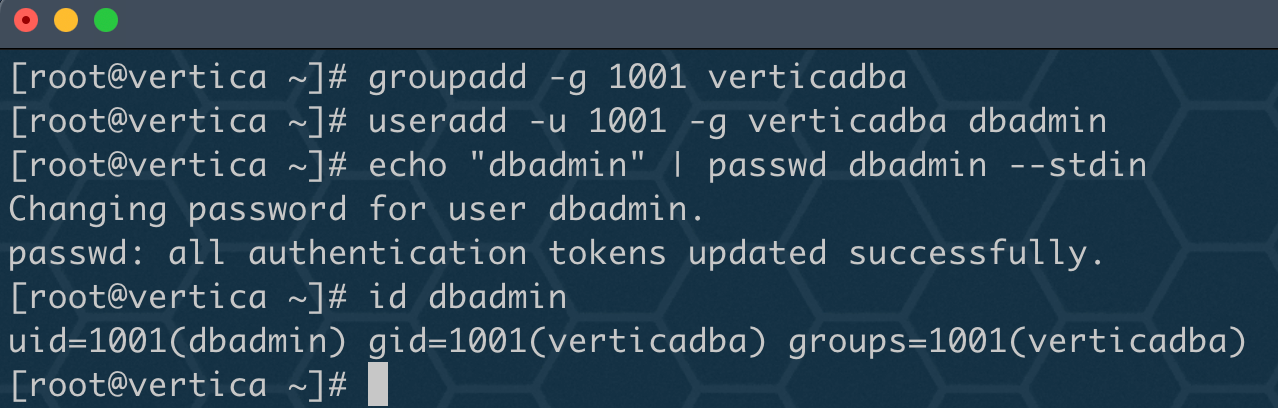
雖然安裝腳本中會自動創建 dbadmin 用戶,但是我還是習慣性手動創建下。
groupadd -g 1001 verticadba
useradd -u 1001 -g verticadba dbadmin
echo "dbadmin" | passwd dbadmin --stdin
id dbadmin
7、配置 Disk Readahead
Vertica 建議您將預讀值設置為至少 2048,該命令會立即更改指定磁盤的預讀值!
lsblk
/sbin/blockdev --setra 8192 /dev/sda
echo '/sbin/blockdev --setra 8192 /dev/sda' >> /etc/rc.local
chmod +x /etc/rc.d/rc.local

?? 注意: 如果你對一個分區運行 blockdev,例如:/dev/sda1,那么該設置仍然適用于整個 /dev/sda 設備。 例如,運行 /sbin/blockdev --setra 2048/dev/sda1 還導致 /dev/sda2 到 /dev/sdaN 使用預讀值 2048。
8、開啟 chrony
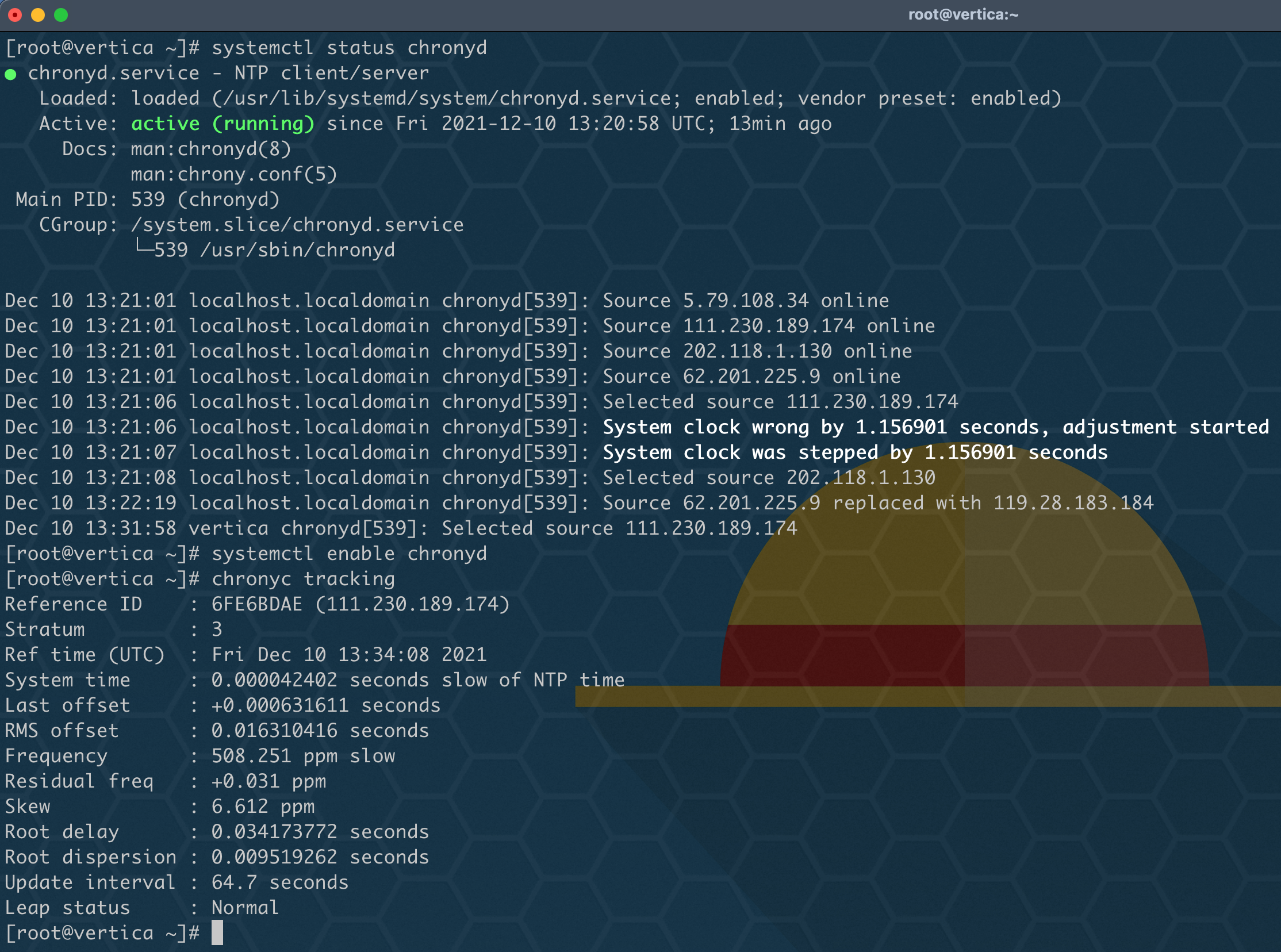
對于 Red Hat 7 和 CentOS 7 系統,必須啟用并運行 chrony,如果是 6 版本,則需要啟動 NTP,默認是開啟的。
systemctl status chronyd
systemctl enable chronyd
chronyc tracking
9、配置透明大頁
對于 Red Hat 7/CentOS 7,您必須啟用透明大頁面,透明大頁默認值為 always。
## 默認為 always
cat /sys/kernel/mm/transparent_hugepage/enabled
## 如果不是 always,通過以下命令設置
echo always > /sys/kernel/mm/transparent_hugepage/enabled
## 設置開機自啟動設置 always
cat<<EOF>>/etc/rc.local
if test -f /sys/kernel/mm/transparent_hugepage/enabled; then
echo always > /sys/kernel/mm/transparent_hugepage/enabled
fi
EOF
## redhat7 或 centos7 需要設置可執行權限
chmod +x /etc/rc.d/rc.local
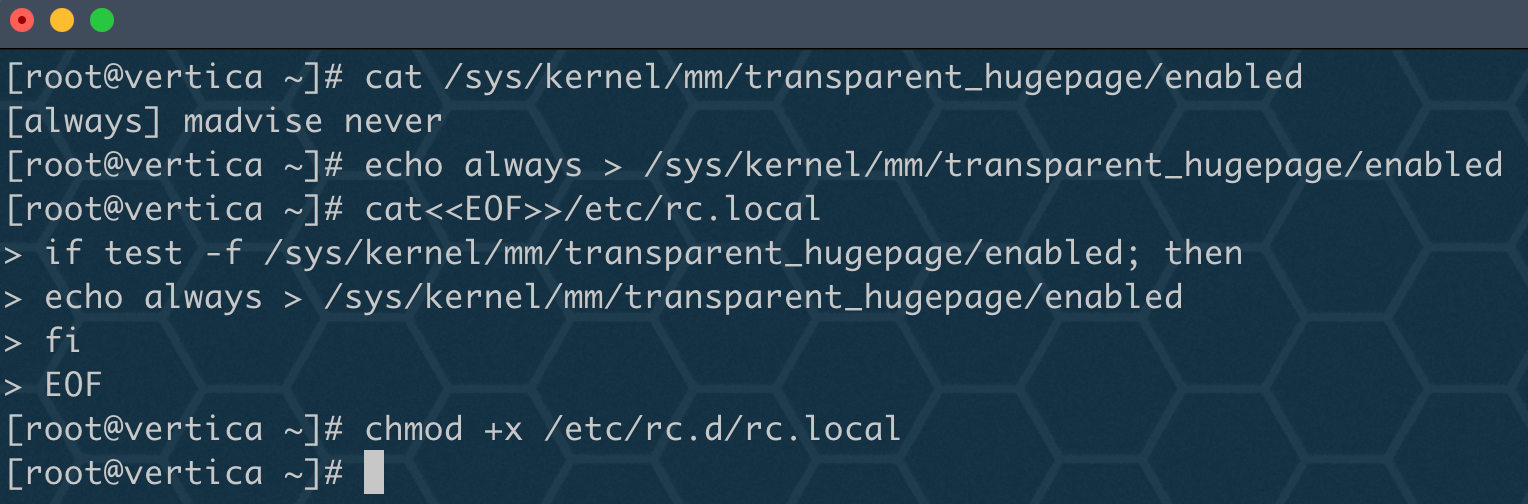
?? 注意: 對于 Red Hat 7、CentOS 7 和 Amazon Linux 2.0,透明大頁面必須設置為 always。對于所有其他操作系統,Transparent Hugepages 必須是 disable 或設置為 madvise。
10、配置 I/O Scheduler
Vertica 使用的磁盤的 I/O 調度程序必須設置為 deadline 或 noop,默認為 deadline。
cat /sys/block/sda/queue/scheduler
echo deadline > /sys/block/sda/queue/scheduler
## 加入開機自啟
echo 'echo deadline > /sys/block/sda/queue/scheduler' >> /etc/rc.local
chmod +x /etc/rc.d/rc.local

11、配置 TZ(TimeZone)
如果不設置 TZ 變量,安裝 vertica 時會報錯!
yum update -y tzdata
timedatectl set-timezone Asia/Shanghai
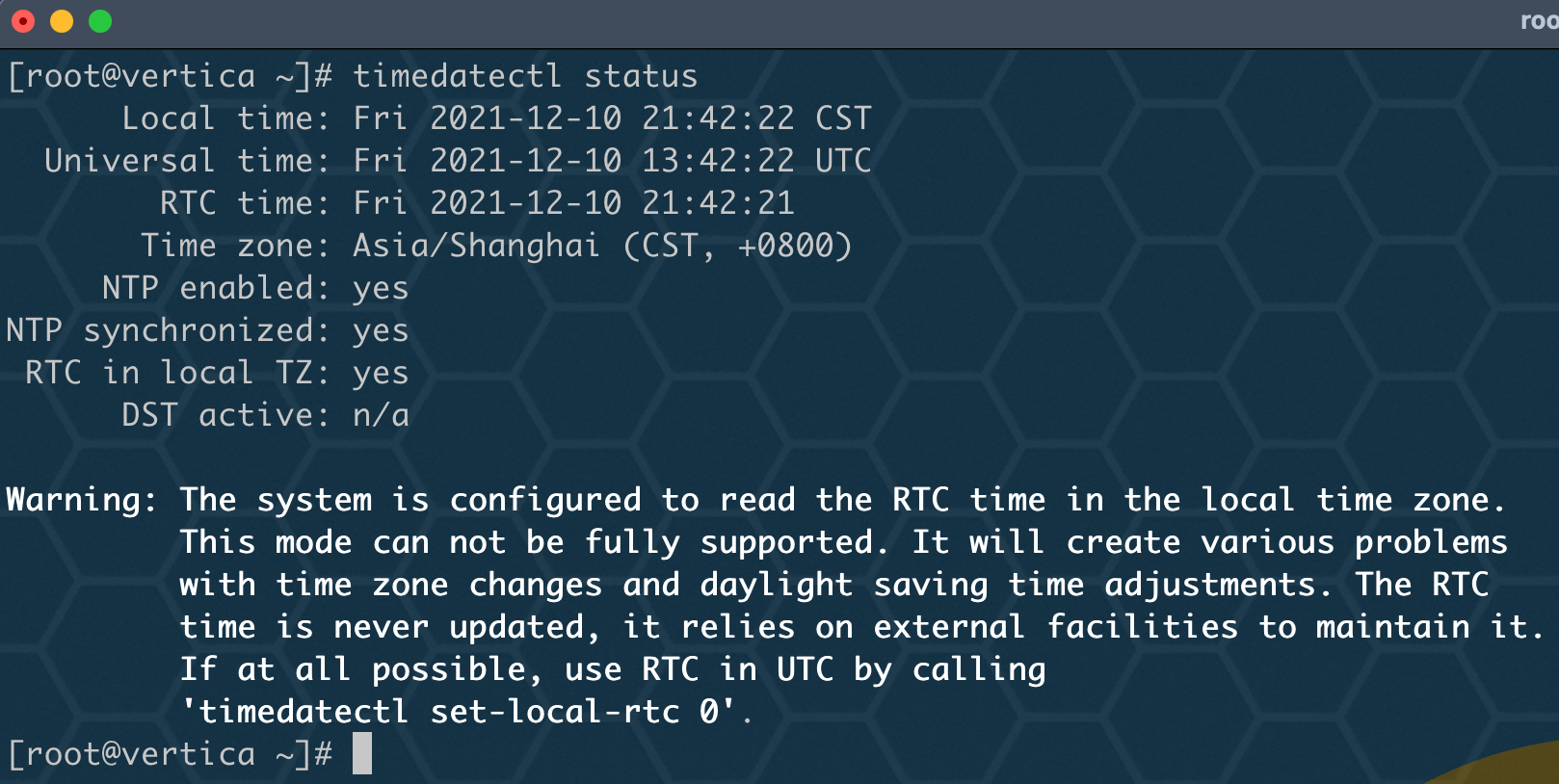
?? 注意: 如果是集群,必須在所有節點上將 TZ 變量設置為相同的值。
12、配置環境變量
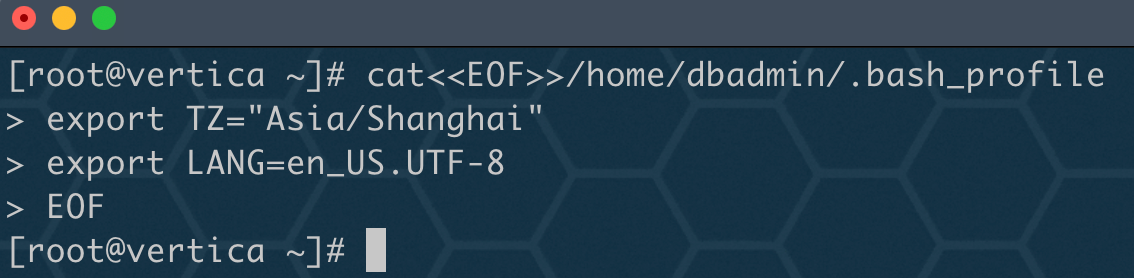
環境變量主要配置 TZ 和 LANG:
cat<<EOF>>/home/dbadmin/.bash_profile
export TZ="Asia/Shanghai"
export LANG=en_US.UTF-8
EOF
13、關閉 tuned
對于 Red Hat 7 或 CentOS 7 或更高版本,請確保在 Vertica 重新啟動時未啟動調整系統服務:
systemctl stop tuned.service
systemctl disable tuned.service
systemctl status tuned.service
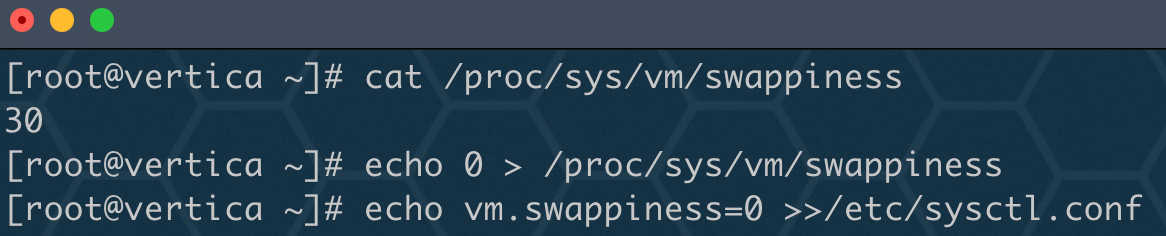
14、配置 swapiness
cat /proc/sys/vm/swappiness
echo 0 > /proc/sys/vm/swappiness
echo vm.swappiness=0 >>/etc/sysctl.conf
sysctl -p
15、禁用 Defrag(碎片整理)
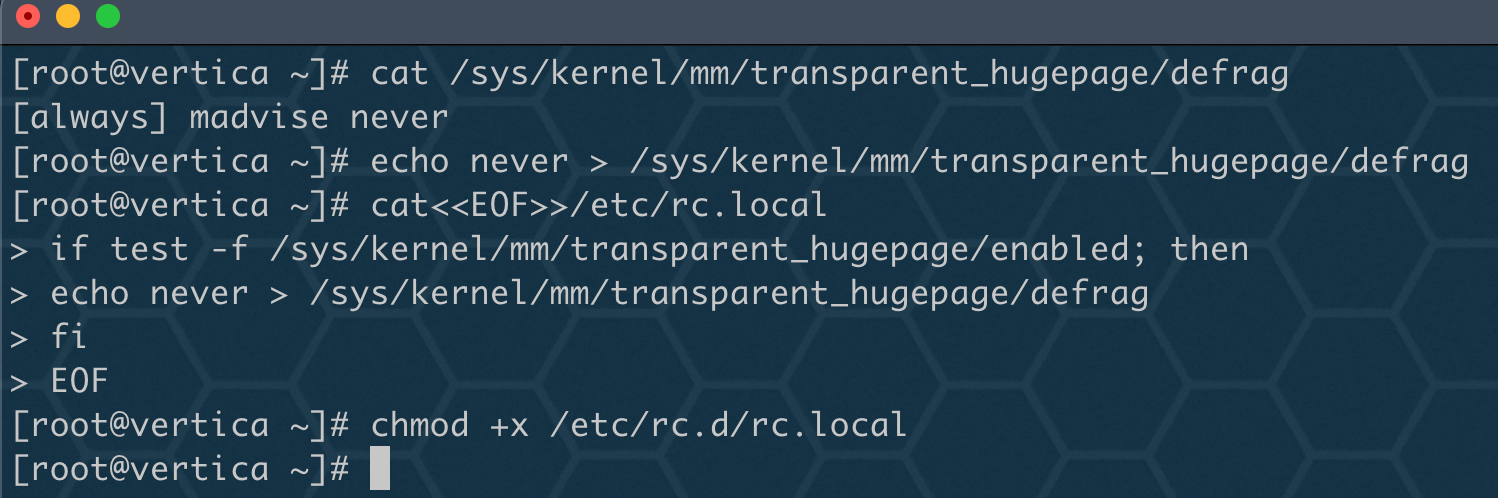
在所有 Red Hat/CentOS 系統上,您必須禁用碎片整理實用程序才能滿足 Vertica 配置要求。
cat /sys/kernel/mm/transparent_hugepage/defrag
echo never > /sys/kernel/mm/transparent_hugepage/defrag
cat<<EOF>>/etc/rc.local
if test -f /sys/kernel/mm/transparent_hugepage/enabled; then
echo never > /sys/kernel/mm/transparent_hugepage/defrag
fi
EOF
chmod +x /etc/rc.d/rc.local
?? 注意: 下方 16、17、18 步驟中 如果這些常規操作系統設置不滿足 Vertica 要求,則安裝程序會自動進行這些設置。當然也可以使用腳本的 --no-system-configuration 參數來阻止安裝程序自動進行這些配置更改 install_vertica。
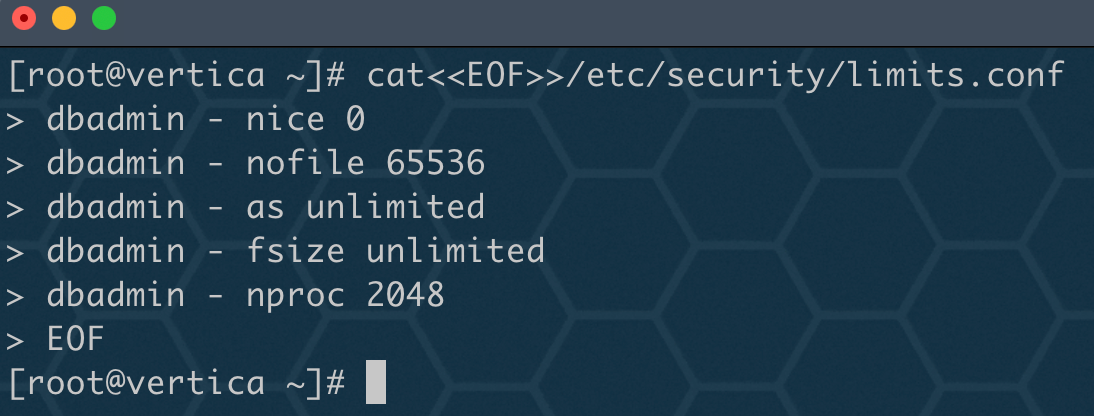
16、配置 limits.conf
為 dbadmin 用戶設置 Limit 配置:
cat<<EOF>>/etc/security/limits.conf
dbadmin - nice 0
dbadmin - nofile 65536
dbadmin - as unlimited
dbadmin - fsize unlimited
dbadmin - nproc 30152
EOF
17、配置 pam.d
cat<<EOF>>/etc/pam.d/su
session required pam_limits.so
EOF

18、配置 sysctl.conf(這一步可以省略配置)
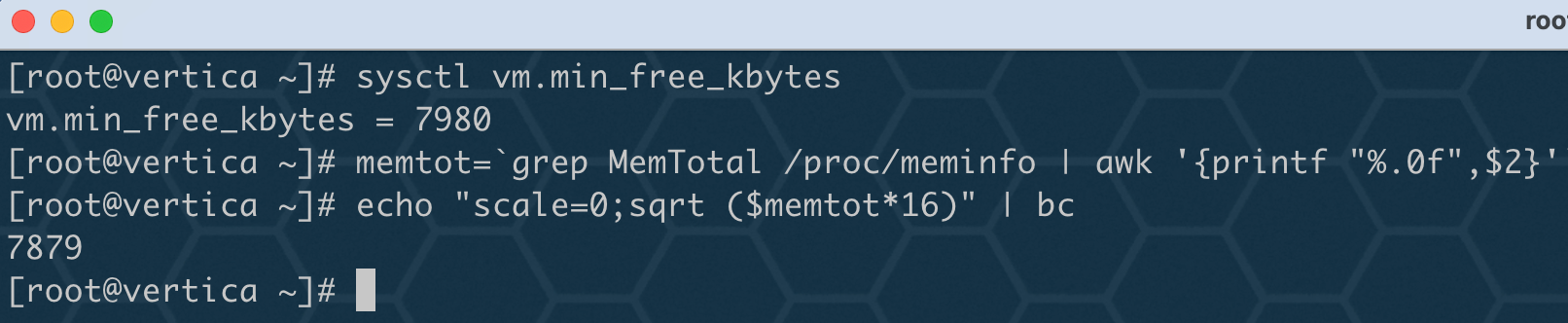
1、min_free_kbytes
通過以下命令可以算出當前主機推薦的 vm.min_free_kbytes 參數值:
sysctl vm.min_free_kbytes
memtot=`grep MemTotal /proc/meminfo | awk '{printf "%.0f",$2}'`
echo "scale=0;sqrt ($memtot*16)" | bc
2、pid_max
通過以下命令計算 pid_max 參數值,最小值為 524288,其中 num-user-proc 為內存大小,字節單位。
memTotal=$(grep MemTotal /proc/meminfo | awk '{print $2}')
numUserProc=$((memTotal * 1024))
pid_max=$((numUserProc + 32768))

3、max_map_count
max_map_count 最低為 65536,更精準計算公式:內存 KB/16
memTotal=$(grep MemTotal /proc/meminfo | awk '{print $2}')
max_map_count=$((memTotal /16))

4、fs.file-max
Vertica打開許多文件。某些平臺對打開文件的數量有全局限制。必須將打開文件限制設置得足夠高,以免干擾數據庫操作。
推薦值至少為內存量(MB),但不小于 65536。
free -m

完整配置命令:
cat<<EOF>>/etc/sysctl.conf
fs.file-max=65536
vm.min_free_kbytes=7980
kernel.pid_max=524288
vm.max_map_count=65536
EOF
sysctl -p
至此,主機環境配置完成!
四、安裝 Vertica 單機版
1、上傳安裝介質
文章開始已經介紹了如何下載安裝包,現在上傳所需安裝包 vertica-11.0.1-2.x86_64.RHEL6.rpm 至 /soft 目錄下。
mkdir /soft
scp vertica-11.0.1-2.x86_64.RHEL6.rpm root@192.168.56.100:/soft

2、rpm 安裝
通過 rpm 安裝 vertical 包:
cd /sofy
rpm -ivh vertica-11.0.1-2.x86_64.RHEL6.rpm
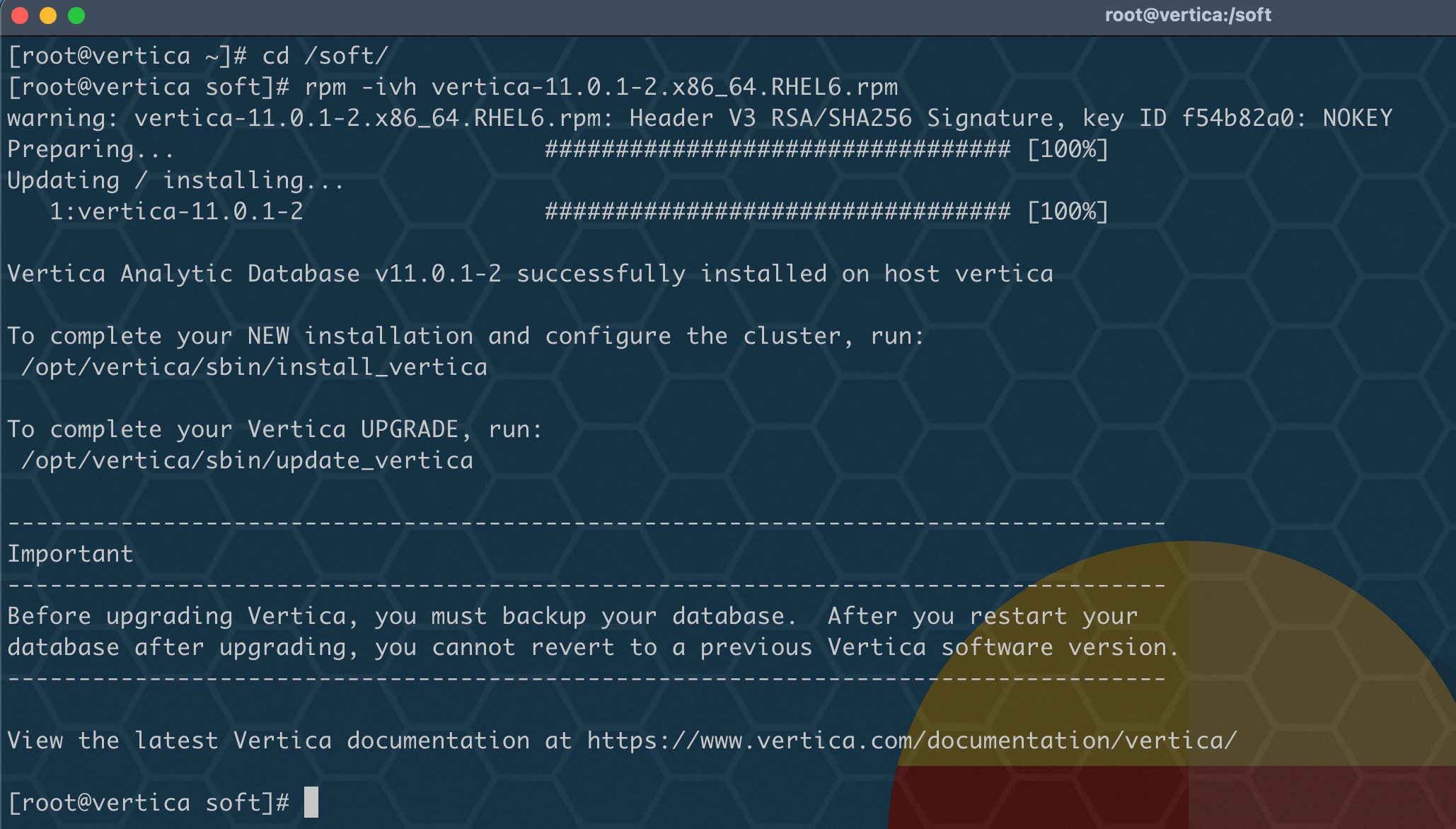
根據提示信息,安裝成功后會在 /opt 目錄下生成一個 vertica 文件夾。
3、腳本安裝 vertica
使用 /opt/vertica/sbin/install_vertica 腳本來安裝,可以使用 --help 看一下基本參數:
[root@vertica soft]# /opt/vertica/sbin/install_vertica --help
Vertica Analytic Database 11.0.1-2 Installation Tool

usage:
  # install or update:
  install_vertica --hosts host1,host2,host3 --rpm vertica.rpm
  install_vertica --hosts 192.168.1.101,192.168.1.101,192.168.1.102 \
          --rpm vertica.rpm

  # add or remove nodes
  install_vertica --add-hosts host4 --rpm vertica.rpm
  install_vertica --remove-hosts host4

  # get the full detailed help
  install_vertica --help

optional arguments:
  -h, --help            show this help message and exit
  --hosts HOST,HOST..., -s HOST,HOST...
                        A comma-separated list of hosts to install or update
  --rpm FILE, -r FILE, --deb FILE
                        The software package to install. Either an RPM or Debian package.
  --clean               Forcibly remove all pre-existing cluster configuration, including database listings. (unsafe!)
  --broadcast, -U       For control messaging, use broadcast UDP messages (default)
  --license FILE, -L FILE
                        License file
  --accept-eula, -Y     Accept the EULA quietly.

Modifying an existing cluster:
  These options allow you to add or remove nodes within an existing cluster.
  New nodes will not participate in any existing databases.  See online
  documentation for more information.

  --add-hosts HOST,HOST..., -A HOST,HOST...
                        A comma-separated list of hosts to add to the cluster
  --remove-hosts HOST,HOST..., -R HOST,HOST...
                        A comma-separated list of hosts to remove from the cluster

System users:
  Vertica runs as the database admin (DBA) user, a system user account.  This
  is also the user which may run Administration Tools (adminTools). These
  options specify the system user and system group used for this purpose.  The
  user and group will be created, if they do not exist.

  --dba-user USER, -u USER
                        The DBA system user name. (default: dbadmin)
  --dba-user-home DIR, -l DIR
                        The DBA system user home. (default: /home/<DBA>)
  --dba-user-password PASSWORD, -p PASSWORD
                        The DBA system user password. (default: prompt)
  --dba-user-password-disabled
                        Disable the DBA system user password.
  --dba-group GROUP, -g GROUP
                        The DBA system group name. (default: verticadba)

Miscellaneous options:
  --data-dir DIR, -d DIR
                        The default data directory for new databases (default: <DBA home>) When defined, also restricts filesystem compatibility checks to the
                        filesystem containing the data directory
  --tmp-dir DIR         The temporary location used for various DBA actions. This is NOT the temporary data location for your database. (default: /tmp)
  --install-package-dependencies
                        Use the high-level OS package manager (like yum/dnf) to automatically install vertica package dependencies. Only works with yum/dnf/apt.

Navigating the cluster:
  In order to complete the specified operations, this program requires access
  to each of the cluster hosts.  Specify authentication credentials with these
  options.  By default, you will be prompted for the password if required.

  When the SUDO_USER environment variable is set, install_vertica attempts to ssh as
  that user.  This is the case when invoked with `sudo`.  Otherwise, install_vertica
  will ssh as root.  The credentials provided with these options must match
  the ssh user.

  --ssh-password PASSWORD, -P PASSWORD
                        The password for ssh authentication in the cluster
  --ssh-identity FILE, -i FILE
                        The ssh identify file for ssh authentication in the cluster
  --ssh-conn-timeout SSH_CONN_TIMEOUT, -t SSH_CONN_TIMEOUT
                        SSH connection timeout in secs( whole numbers only )

Networking options:
  Vertica uses the network for three purposes: data exchange, cluster
  control messaging, and client communication.  By default, a single
  network and UDP broadcast (control messaging only) will be used.
  These options allow you to configure the defaults for new databases,
  but will not affect already-created databases.  See the online
  documentation for more details.

  --point-to-point, -T  For control messaging, use direct UDP messages rather than UDP broadcast. Affects new databases only.
  --control-network BCAST_ADDR, -S BCAST_ADDR
                        For control messaging, use a specific network. Specify via broadcast address, subnet, or 'default'.
  --spread-logging, -w  Enable control message logging (spread logging). Affects new databases only. (not recommended)
  --large-cluster SPREAD_COUNT, -2 SPREAD_COUNT
                        Maximum number of Control Nodes for new databases. Control Nodes run spread for database coordination.
  --ipv6, -6            Create an ipv6 cluster.
  --ipv4, -4            Create an ipv4 cluster. (default)

Silent installation:
  Installation options can be saved to or loaded from a configuration
  file in order to assist with automation and repeated installs.

  --config-file FILE, -z FILE
                        Read options from a configuration file
  --record-config FILE, -B FILE
                        Write options to a configuration file and exit

System and cluster prerequisites:
  System and cluster prerequisites are checked by install_vertica.  These
  options adjust if the prerequisites are checked and how the results
  are handled.

  --failure-threshold {HINT,WARN,FAIL,HALT,NONE}
                        Stop installation for any failures of this severity or worse (default: WARN)
  --no-system-configuration
                        By default, simple system configurations that need to be adjusted to conform to the Vertica installation will be changed on your behalf. To
                        prevent any system configuration changes, use this option.
  --ignore-aws-instance-type
                        (AWS only) Not recommended. Ignore the instance type reported by AWS meta data.
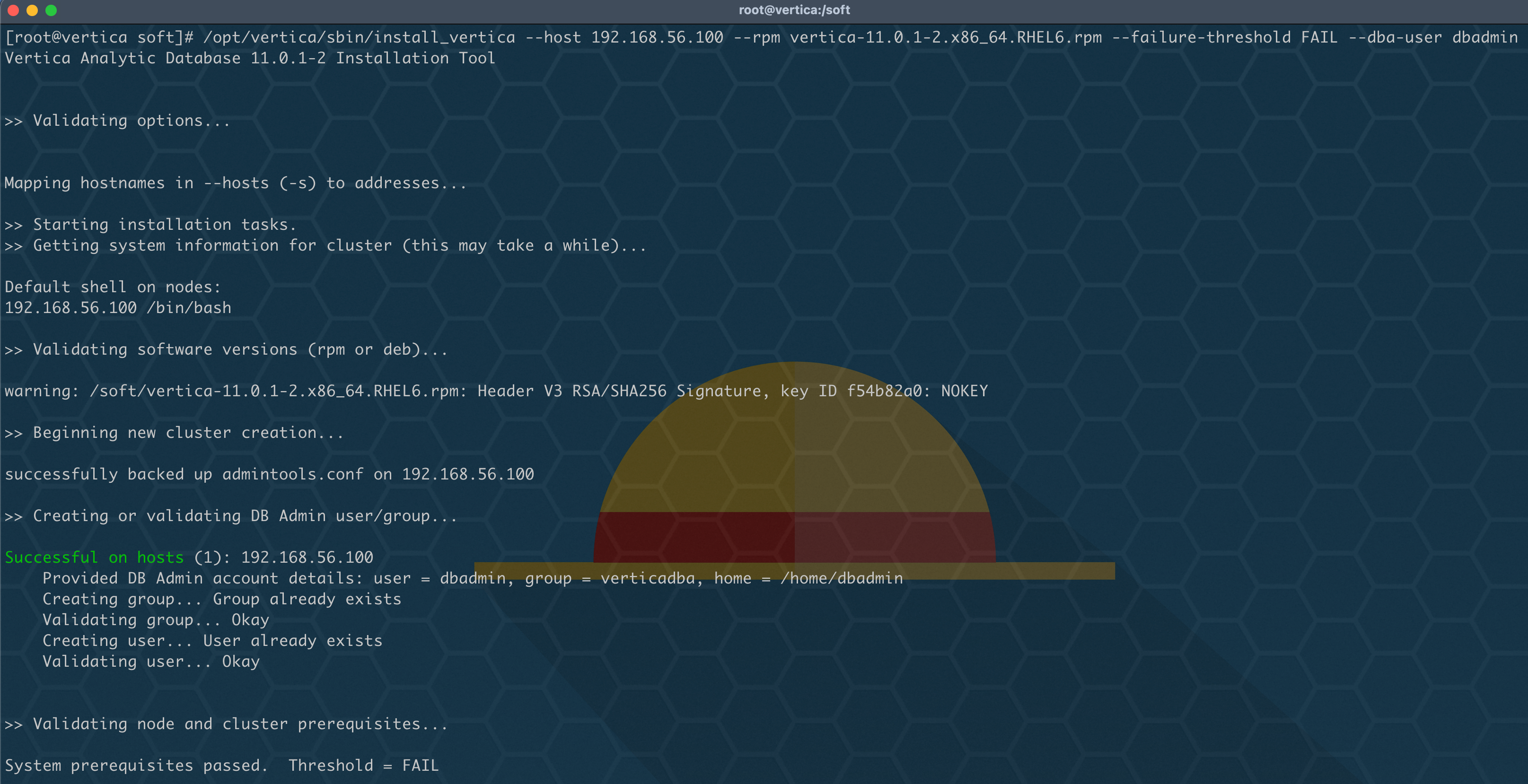
基本安裝:
大致了解參數使用情況,開始正式安裝,執行基本安裝:
cd /soft
/opt/vertica/sbin/install_vertica --host 192.168.56.100 --rpm vertica-11.0.1-2.x86_64.RHEL6.rpm --dba-user dbadmin
靜默安裝:
/opt/vertica/sbin/install_vertica --record-config /tmp/vertica-inst.prp --accept-eula --dba-user-password dbadmin
/opt/vertica/sbin/install_vertica --config-file /tmp/vertica-inst.prp
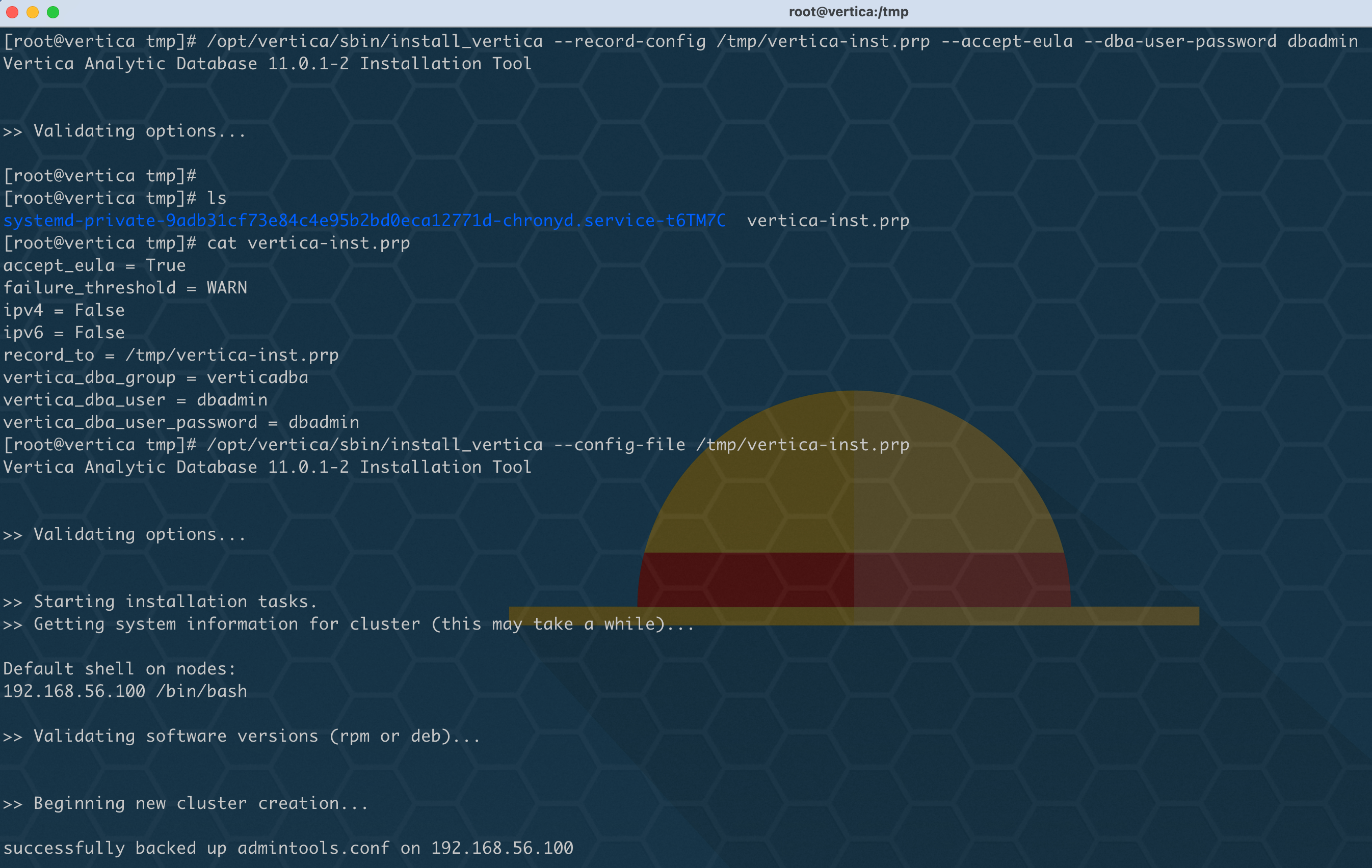
當執行完之后,顯示如下即為成功:
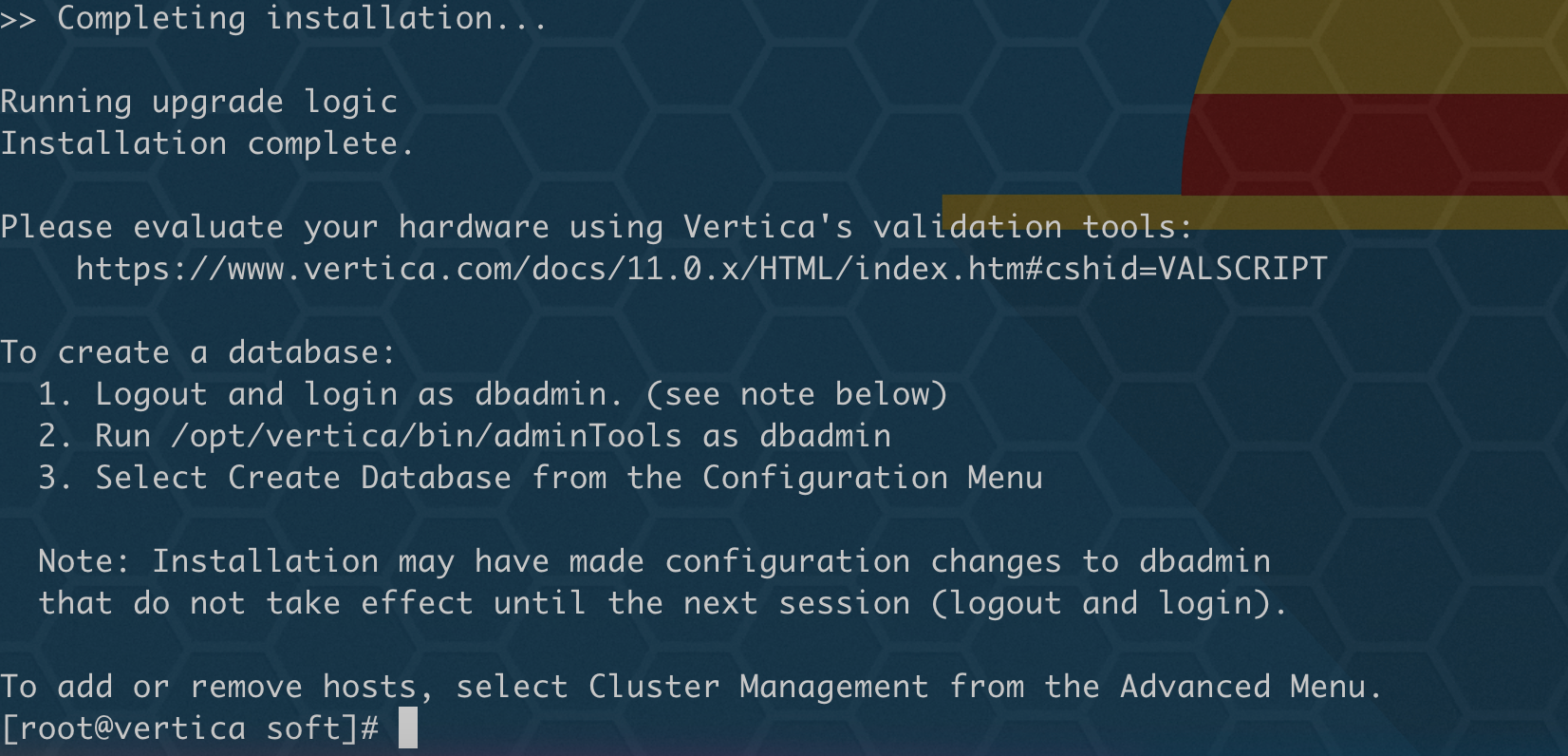
?? 注意: 操作系統環境設置根據我的步驟就不會錯,否則根據實際報錯進行排查修改即可!
4、初始化創建數據庫
根據提示進入 dbadmin 創建數據庫:
su - dbadmin
/opt/vertica/bin/adminTools
執行之后,跳出圖形化配置界面:
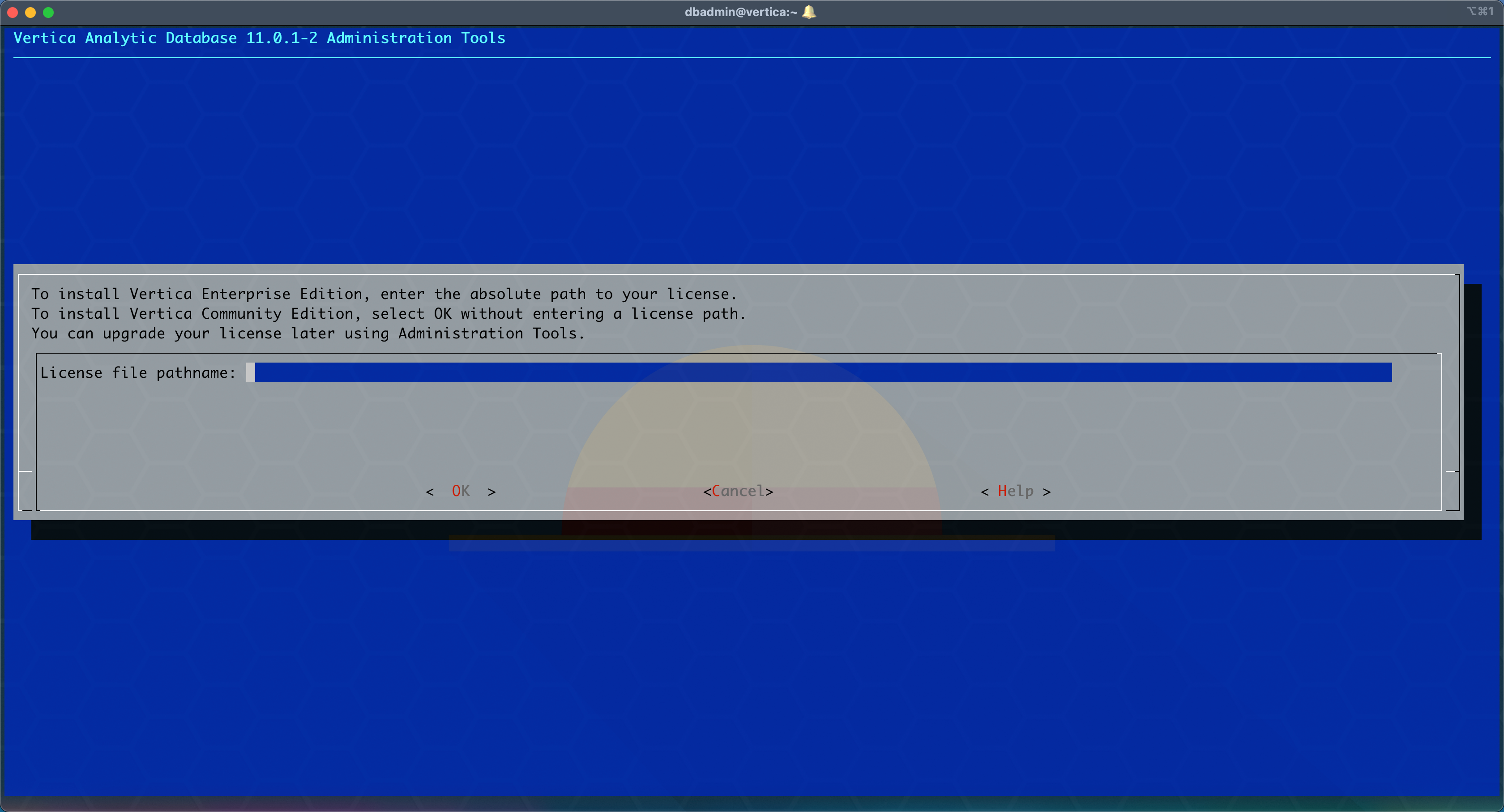
由于是社區版,不需要 license,因此直接 Tab鍵 選擇 OK 回車進入下一步:

使用上下鍵切換到 Accpet,回車鍵選擇之后,Tab鍵 選擇 OK 回車進入下一步:

使用上下鍵切換到 Configuration Menu,Tab鍵 選擇 OK 回車進入下一步:
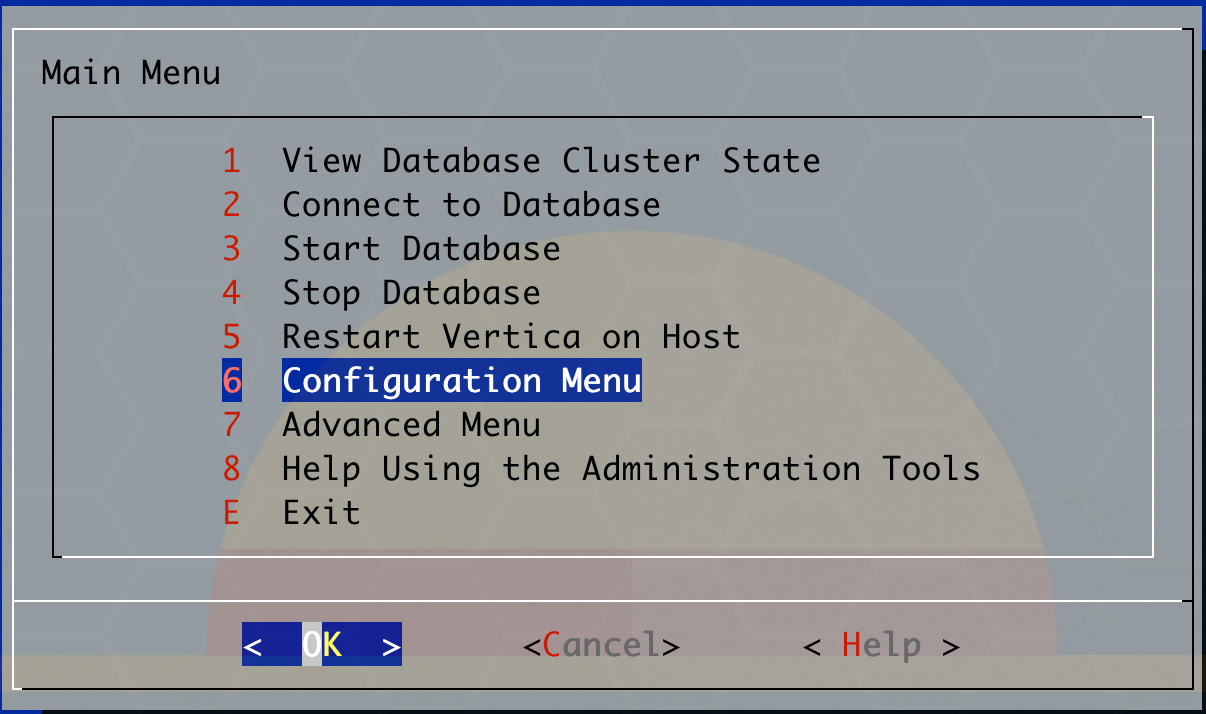
選擇創建數據庫,企業版:
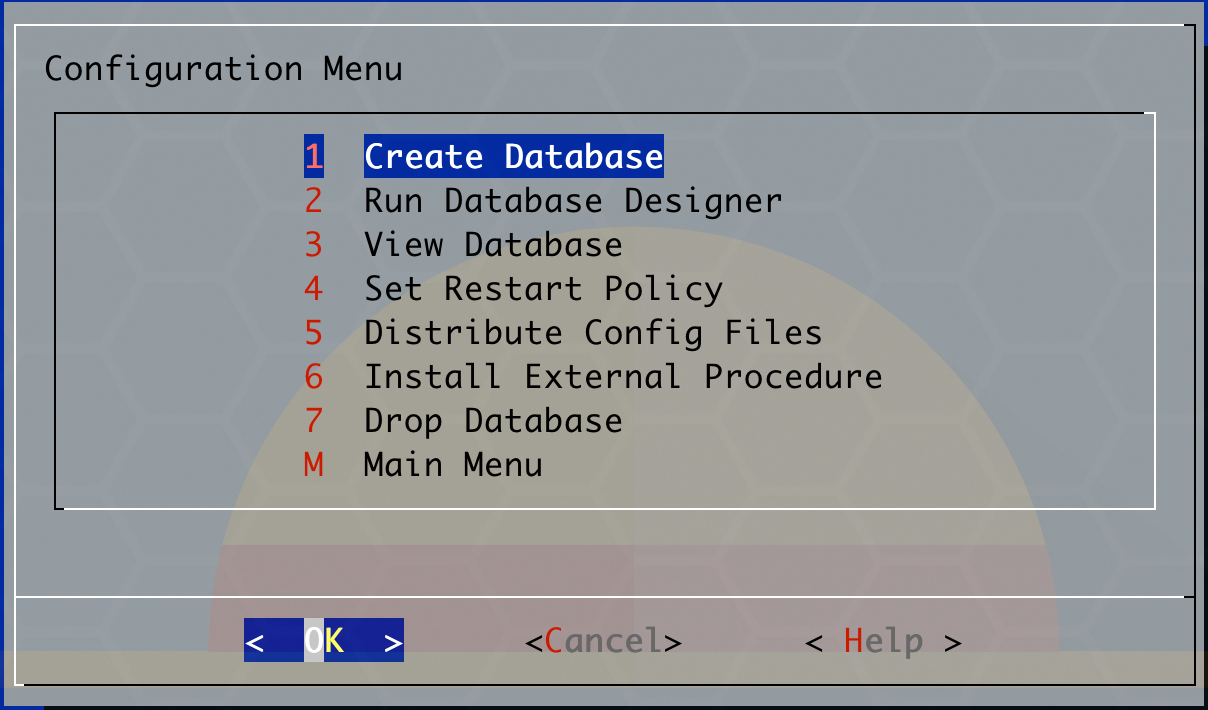
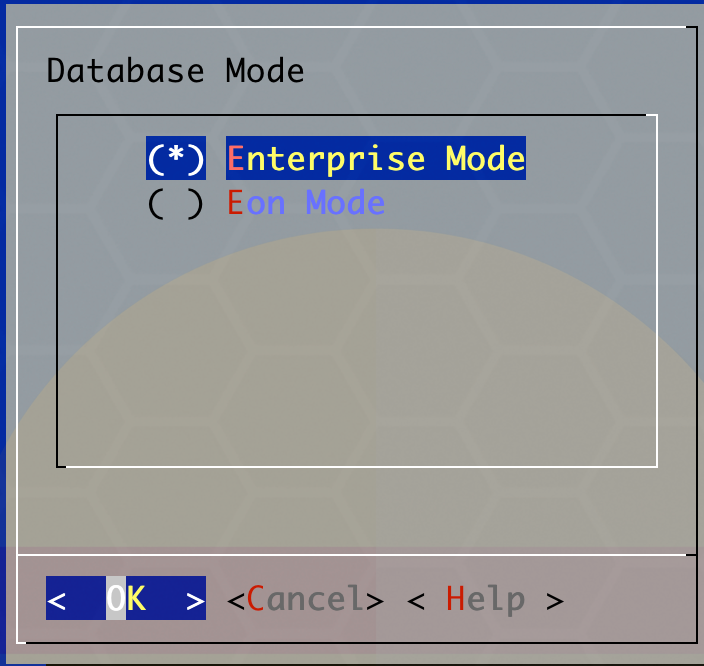
輸入數據庫名稱 lucifer,Tab鍵 選擇 OK 回車進入下一步:
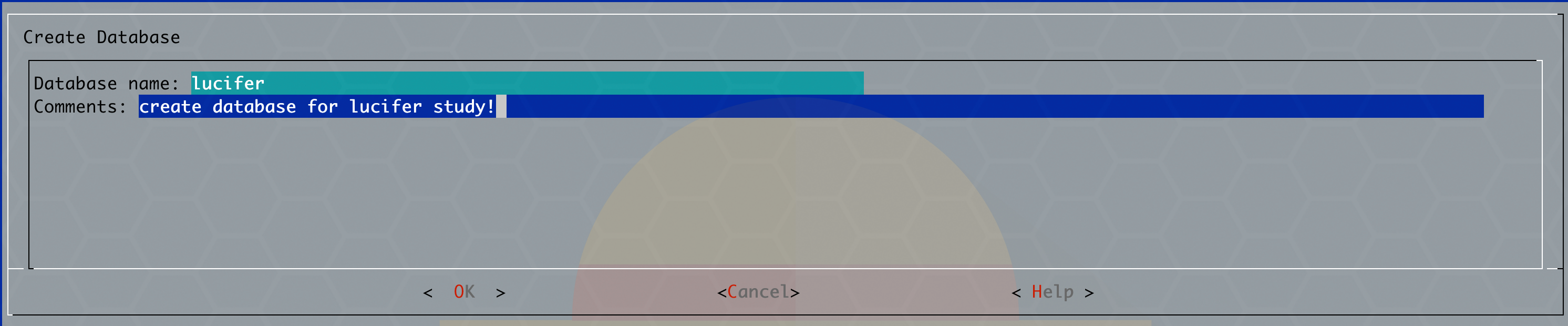
輸入兩次數據庫的連接密碼,Tab鍵 選擇 OK 回車進入下一步:

默認當前主機 IP:
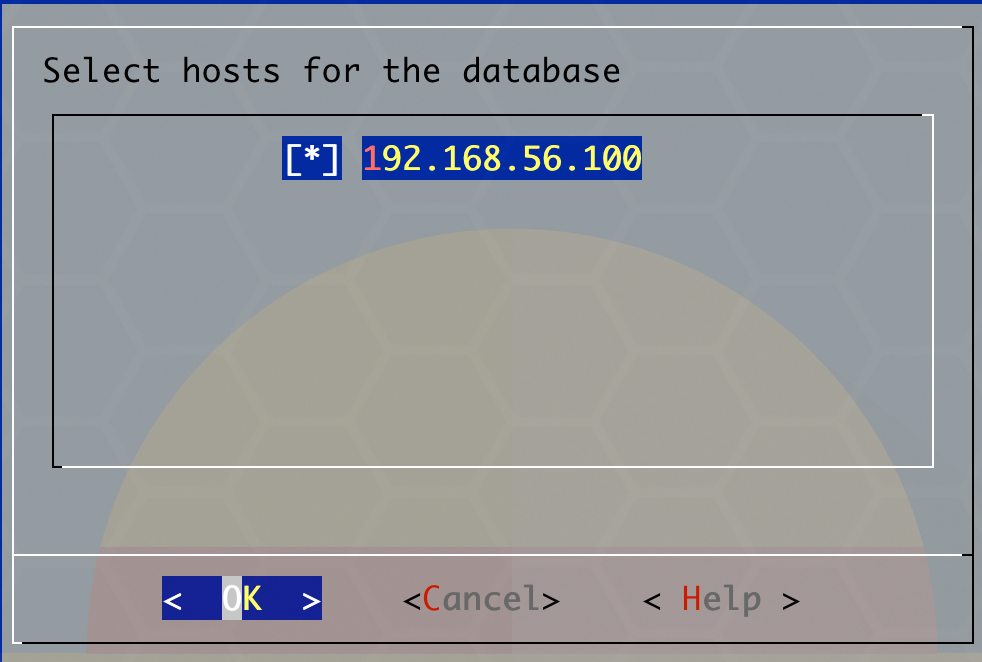
選擇日志文件和數據文件存放目錄,默認 /home/dbadmin:

單節點或兩節點無法設置 k-safe,默認即可:

開始創建數據庫:
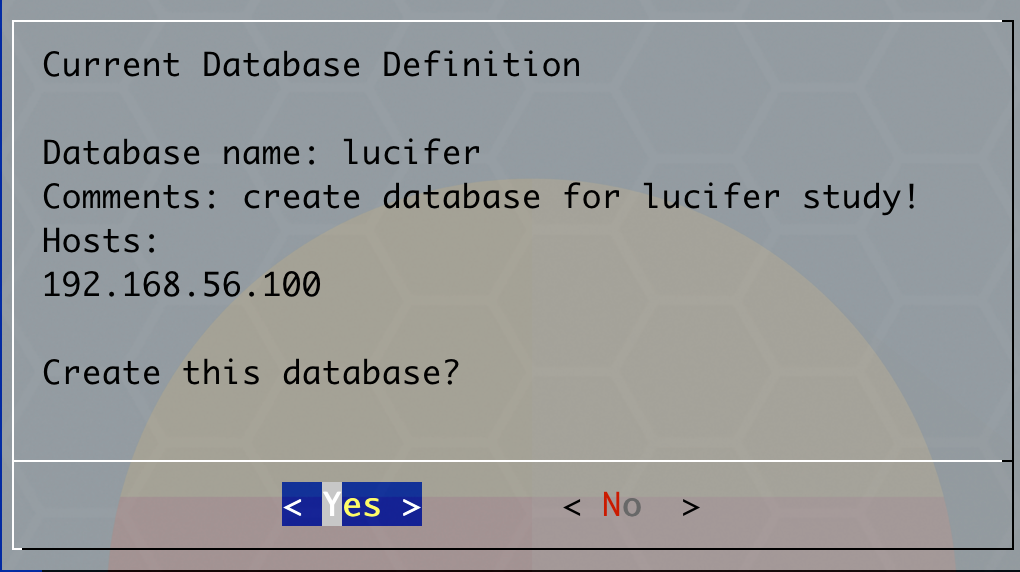
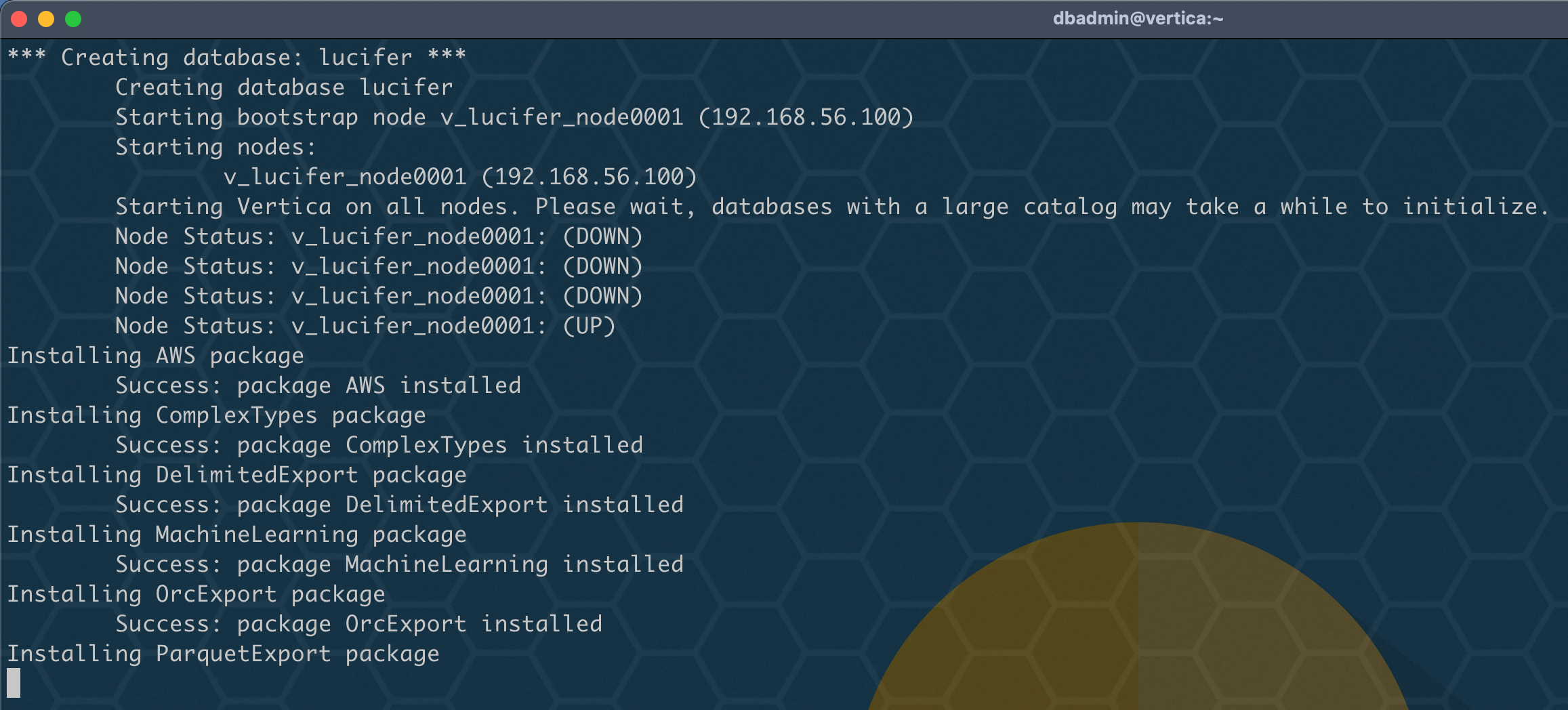
數據庫創建成功:
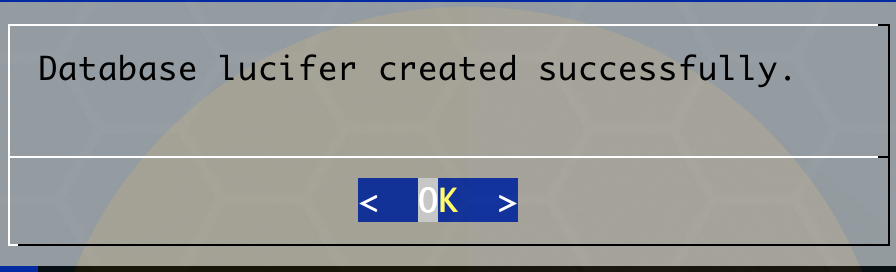
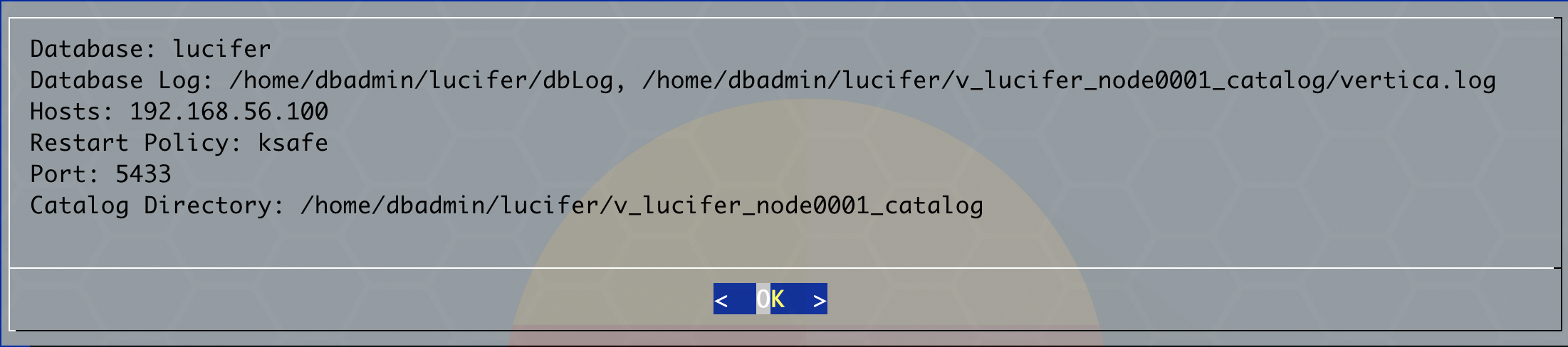
可以通過圖形化連接數據:

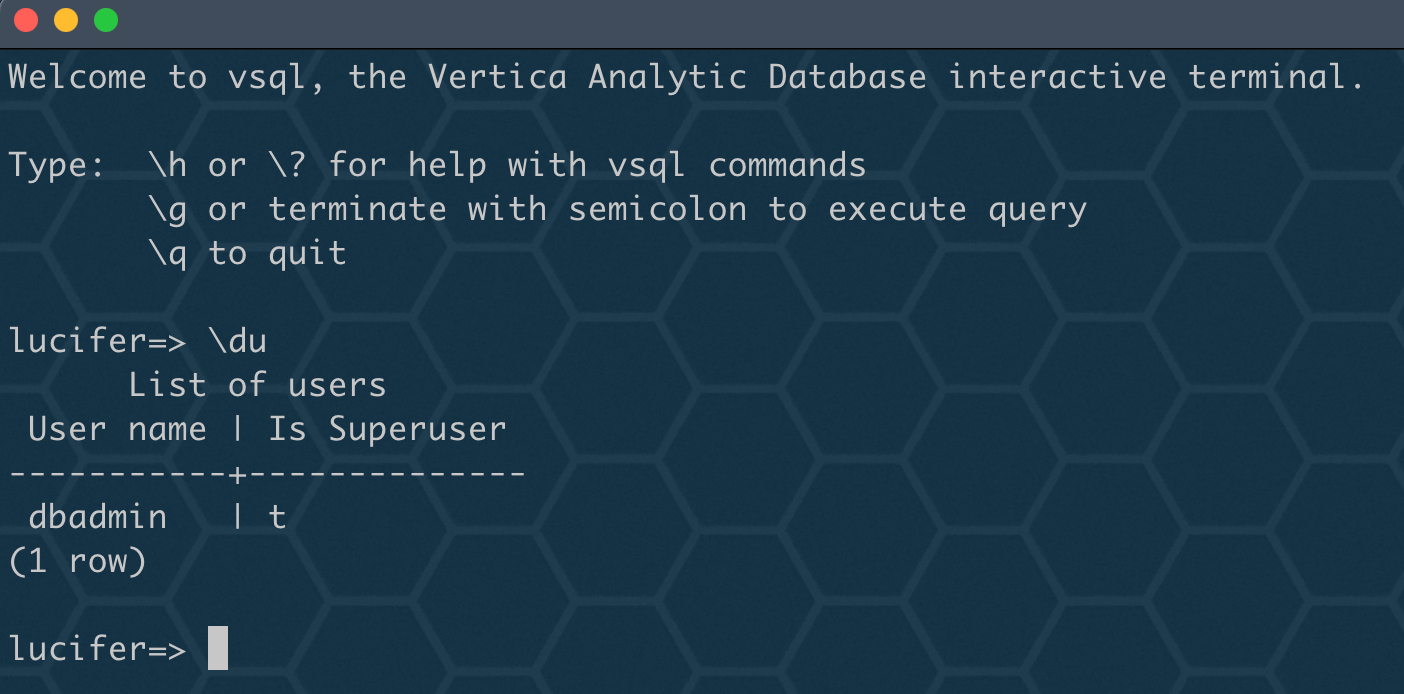
至此,數據庫已創建成功!
五、優化配置
1、配置環境變量
cat<<EOF>>/home/dbadmin/.bash_profile
export VT_HOME=/opt/vertica/bin
alias vsql='vsql lucifer dbadmin'
EOF
. ~/.bash_profile
2、免密連接數據庫
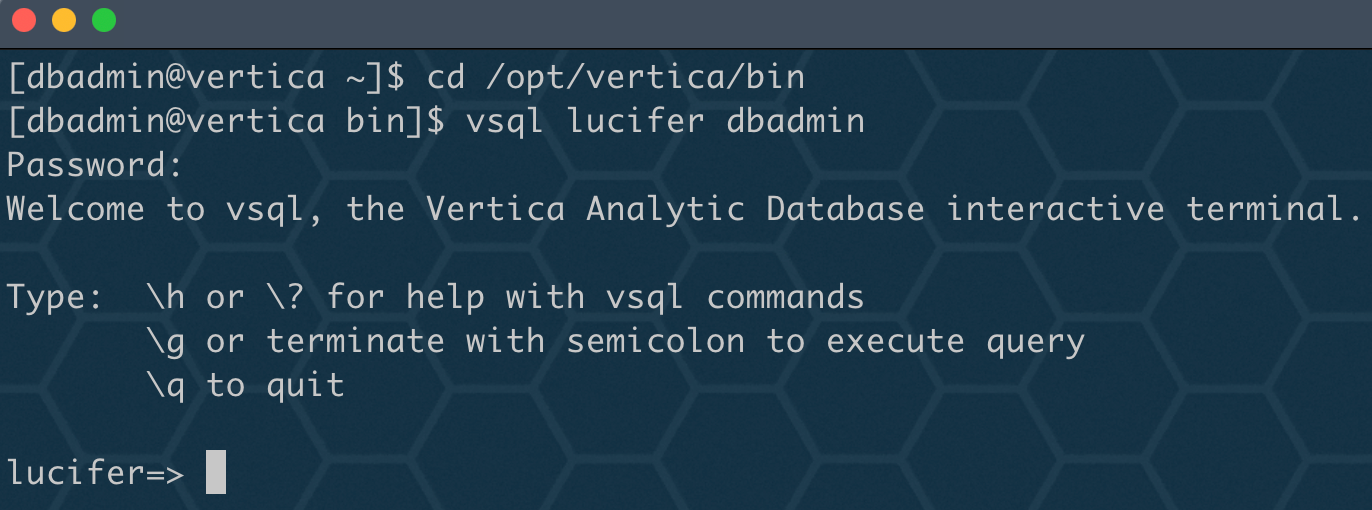
正常連接數據庫:
vsql lucifer dbadmin #順序是數據庫,用戶名,不能顛倒
配置免密:
cat<<EOF>>~/.pgpass
#hostname:port:database:username:password
*:5433:lucifer:dbadmin:vertica
# *表示任何裝了Vertica的主機IP
EOF
chmod 600 ~/.pgpass
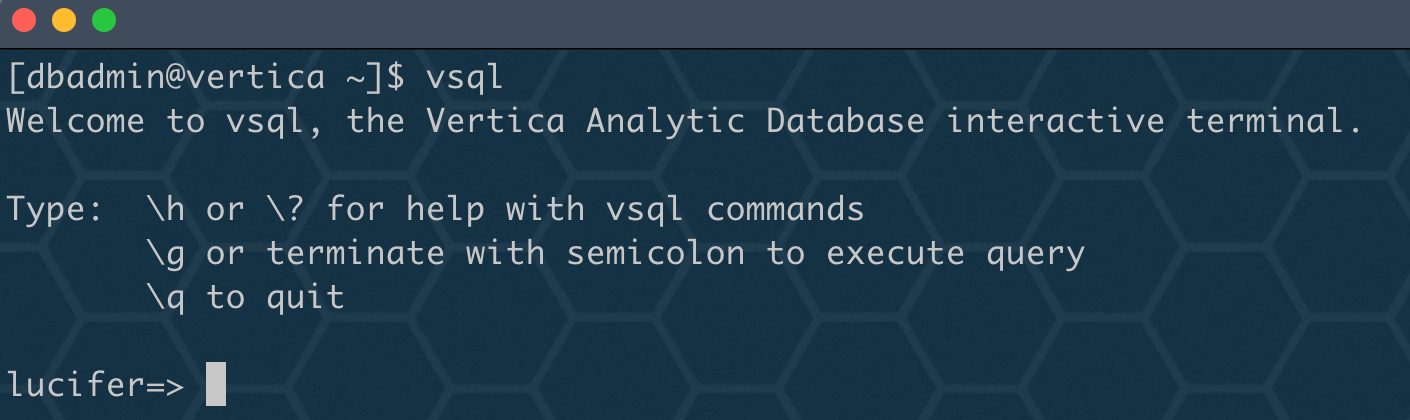
測試連接:
vsql
3、配置開機自啟
使用 adminTools 命令開啟圖形化界面:
adminTools
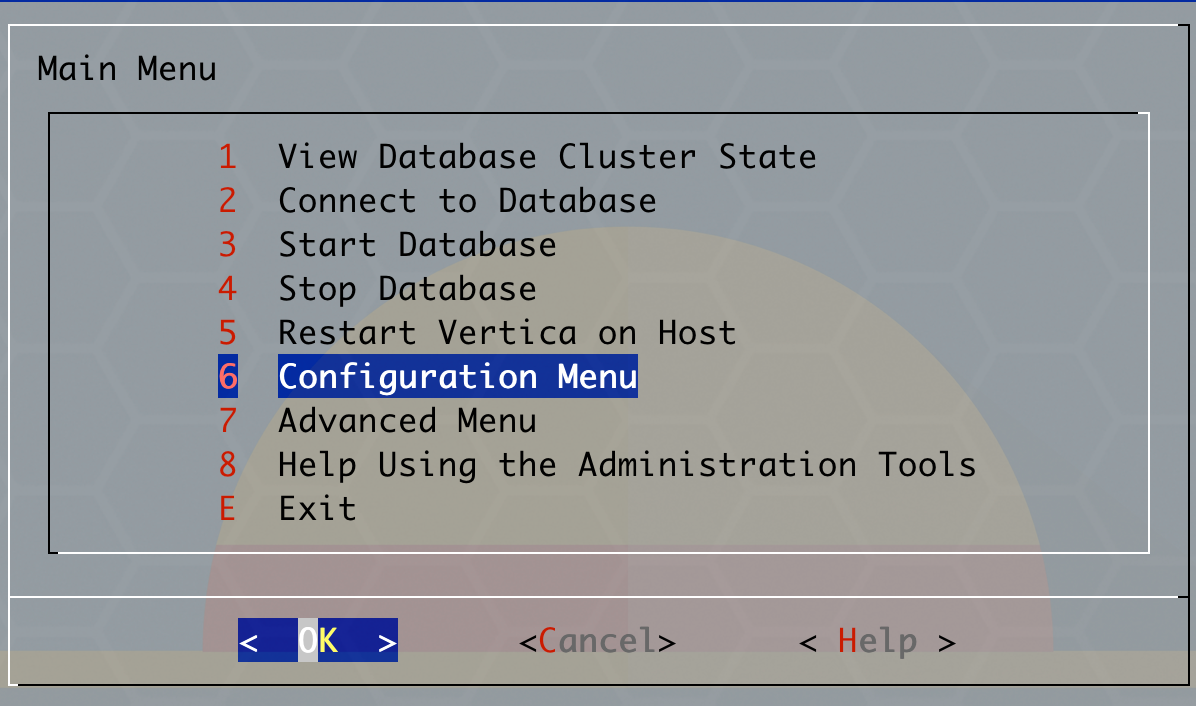
設置開機自啟:
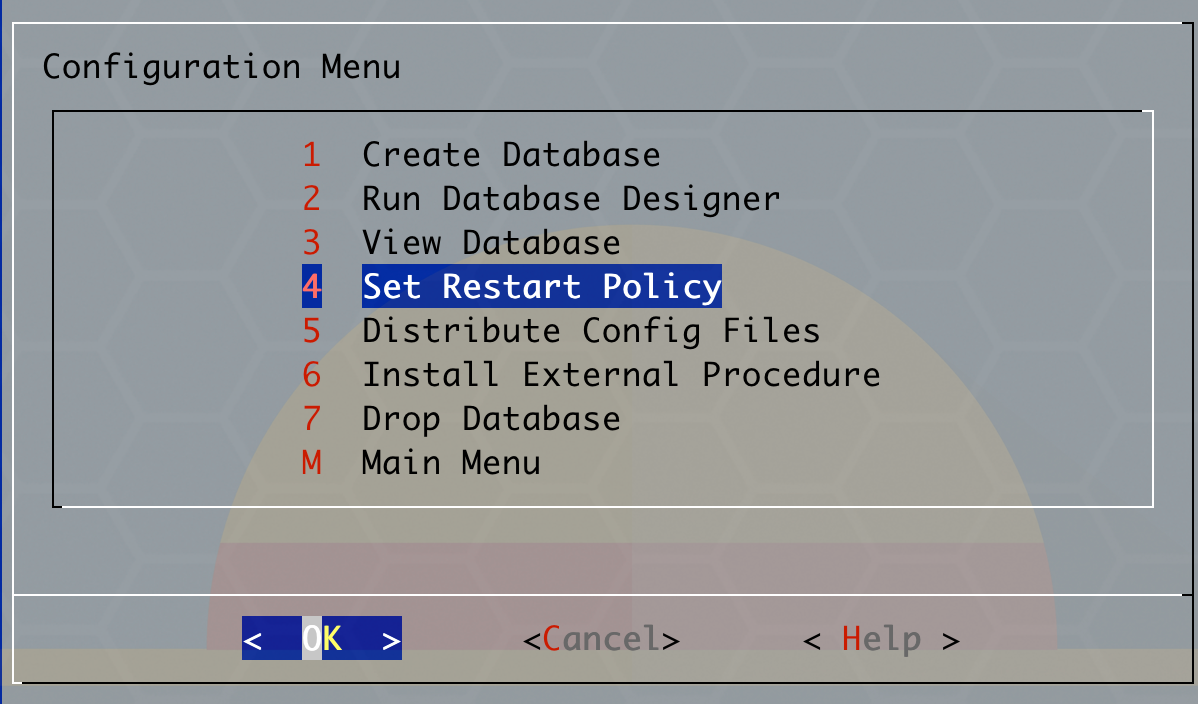
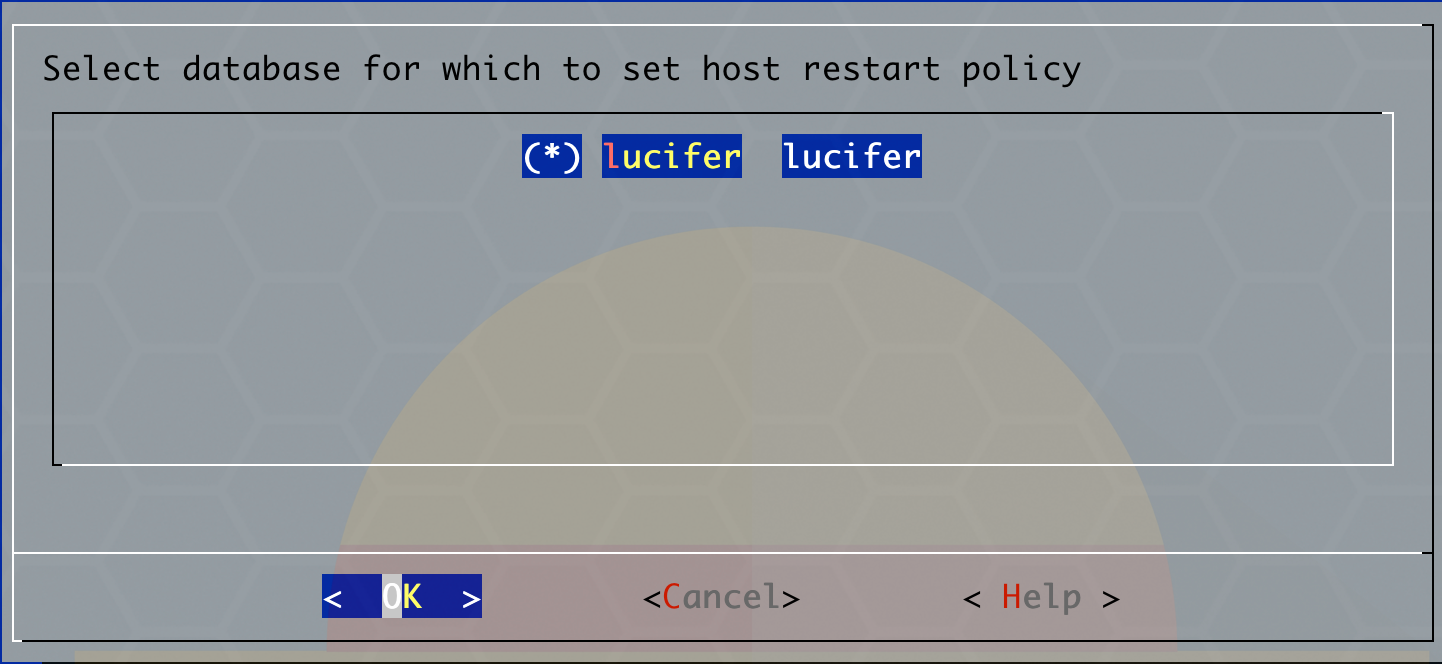
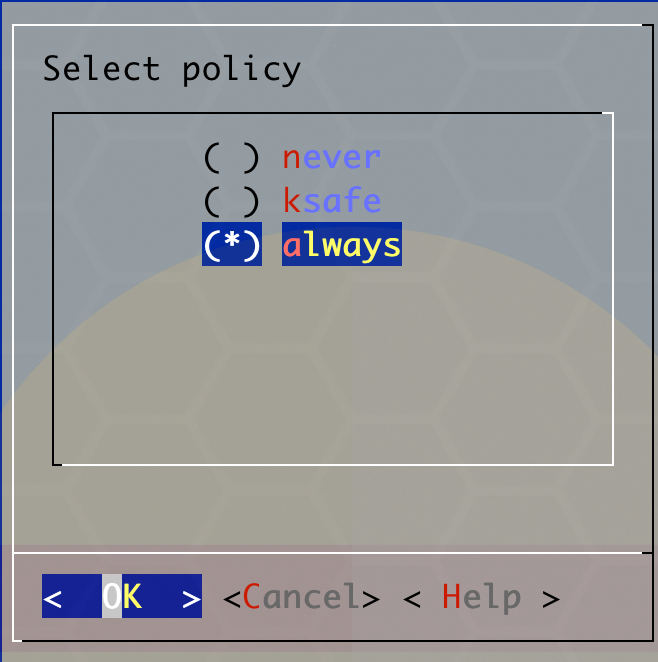

數據庫已設置為開機自啟!
寫在最后
單節點 Vertica 11 社區版安裝就結束了,由于網上沒有過多相關文章,只能自己對著官方文檔一步步摸索安裝,總算是安裝成功了,接下來會嘗試安裝集群版本,敬請期待!886~
